

Yes, prompting can be used to create screens in Figma in a reliable way, but only if you treat it as an engineering problem: you must lock context, set the right “mode”, and feed the AI precise constraints instead of vague “design me a dashboard” requests.
TL;DR
- Raw “design this app” prompts in Figma AI tools usually fail because they lack context, mode, and constraints.
- The workflow that actually works is: compile context in a separate AI → decide fix vs reset → lock input sequence → set “screen generation mode” → give minimal scaffolding.
- You should prepare research, flows, and a real design system before asking any AI to generate UI.
- Use named references (e.g., “Mobile DS v3”) and explicit layout hints to avoid generic or web-ish UI.
- The patterns in this article are reusable across tools, not just Figma Make or similar AI design features.
Learn more about: Explain How Design is Important to The Content
What Is the Real Engineering Problem Behind “AI-Generated Figma Screens”?

Why “just prompt it” breaks on real products
In practice, the question “Can prompting be used to create screens in Figma” sounds trivial until you try it on a real product with 30–60 screens, multiple breakpoints, and a strict design system. On my first large project using Figma’s AI-powered generation (plus a Make-like plugin), I already had everything a normal team would consider “ready”:
- User flows and task diagrams for 4 core journeys
- Low-fidelity wireframes in Figma
- A production design system with tokens and components
- Brand guidelines and accessibility constraints
- A Notion doc with product copy and tone of voice
Despite this, my early AI runs failed in very predictable ways:
- It kept acting like it was stuck in component library mode, endlessly tweaking buttons instead of building flows.
- It output web-style layouts when I explicitly needed native mobile screens.
- It produced blank or half-empty frames when the prompt got too long or too fuzzy.
After a week of this, it was obvious the problem wasn’t “AI is not smart enough”, but that I was treating the tool like magic instead of a system with modes and parameters. Once I reframed it as an engineering task, a few principles became non‑negotiable:
- Context locking: load research, flows, and DS once, then stop re-explaining them in every prompt.
- Mode setting: tell the AI whether it’s in “screen generation”, “component refactor”, or “copy edit” mode.
- Named references: always refer to the design system, tokens, and libraries by explicit names.
- Minimal scaffolding: give it a rough layout or frame structure instead of a completely blank canvas.
The rest of this article walks through how I turned that insight into a reproducible workflow that actually generates shippable screens at scale.
What Do You Need Before Using Prompts to Generate Figma Screens?
The non-optional prerequisites that prevent generic output
Before asking “Can prompting be used to create screens in Figma” for your own project, you need to understand that AI hates ambiguity. According to both industry practice and my own experiments, if you skip the groundwork, the model will:
- Guess your information hierarchy
- Invent patterns that don’t exist in your product
- Drift into Dribbble-style visual noise
Here’s what I had ready before I got stable results:
- Market / user research deck – key personas, pain points, top tasks.
- User flows – at least the main “happy paths” mapped in a diagram tool or Figma.
- Wireframes – even rough sketches per flow, 1–2 variants per key screen.
- Design system – components (buttons, inputs, cards), color tokens, typography scale.
- Brand guidelines – do/don’t examples, tone, accessibility rules (e.g., min contrast 4.5:1).
- UI inspiration – 3–5 example products with annotations about what to copy/avoid.
If you don’t have at least flows + some kind of design system, the AI will make too many decisions for you. That’s where generic dashboards, random gradients, and inconsistent spacing come from. Based on experience, teams that try to “let the AI figure it out” spend more time cleaning up than they would have spent designing from scratch.
A quick sanity check before you start
Before touching any AI design feature, I now do a 5-minute checklist:
- Can I describe the product in 2–3 sentences without hand-waving?
- Do I know the primary platform (iOS, Android, web) and form factor?
- Do I have at least a v1 component library, even if imperfect?
- Can I point to 1–2 flows and say “these are the first to automate”?
If the answer to any of those is “no”, I pause the AI work and fix that first. It sounds strict, but it’s the difference between AI amplifying your system vs amplifying your chaos.
Learn more about: Figma Version Control for Design System
How Do You Use a Separate AI to “Compile” Better Figma Prompts?
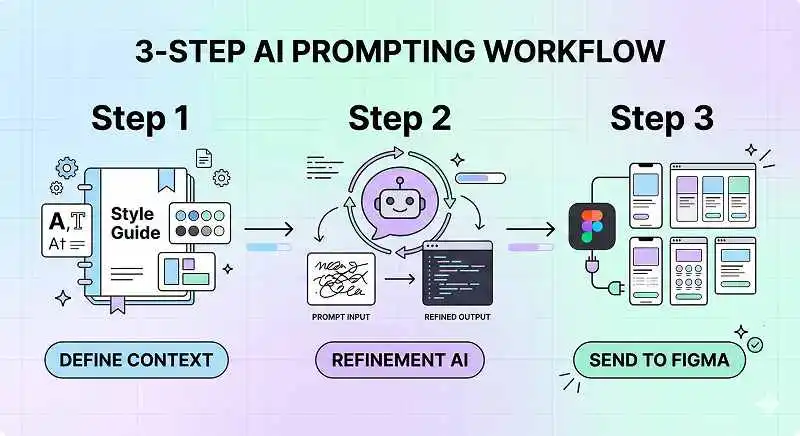
Step 1 – Stop prompting Figma directly and use an AI helper first
The turning point in my workflow was realizing that the best place to engineer prompts is not inside Figma itself. When I tried to engineer long, nuanced prompts directly in a Make-like plugin, I ended up with:
- Messy, inconsistent phrasing across runs
- No version history of what I had tried
- Prompts that mixed context, instructions, and evaluation in one blob
So I switched to using a general LLM (like ChatGPT) as a prompt compiler. I fed it my research, flows, and design system summary, then asked it to help me generate structured prompts that I would later paste into Figma’s AI tool.
Here’s one of the real prompts I used (lightly redacted):
Prompt #1 – Context + problem statement (to AI helper, not Figma)
“I’m trying to use Figma Make / AI design to generate production-ready mobile app screens, not just pretty mockups.
I already have: user flows, wireframes, and a mobile design system called ‘Mobile DS v3’.
Right now the AI keeps giving me generic web dashboards, weird gradients, and it ignores my spacing + typography tokens.
I need you to act as a prompt engineer that writes structured prompts specifically for Figma Make, so it stays in ‘screen generation mode’ and uses my DS.
First, ask me any clarification questions you need about flows, DS, and constraints.
Then propose a step-by-step input sequence and 2–3 master prompts I should reuse inside Figma Make.”
Line-by-line prompt explanation
- “I’m trying to use Figma Make / AI design to generate production-ready mobile app screens, not just pretty mockups.”
– Sets the seriousness: this is about shipping UI, not concept art. It also locks the platform (mobile).
- “I already have: user flows, wireframes, and a mobile design system called ‘Mobile DS v3’.”
– Signals that real constraints exist and introduces a named reference for the DS.
- “Right now the AI keeps giving me generic web dashboards, weird gradients, and it ignores my spacing + typography tokens.”
– Names concrete failure modes so the helper can avoid them explicitly.
- “I need you to act as a prompt engineer that writes structured prompts specifically for Figma Make, so it stays in ‘screen generation mode’ and uses my DS.”
– Defines the role (prompt engineer) and the desired mode (screen generation).
- “First, ask me any clarification questions you need about flows, DS, and constraints.”
– Forces a Q&A phase instead of jumping straight into bad suggestions.
- “Then propose a step-by-step input sequence and 2–3 master prompts I should reuse inside Figma Make.”
– Requests a reusable workflow, not one-off prompts.
What happened after I gave this prompt
The AI helper responded with targeted questions: which flows to prioritize, how Mobile DS v3 handles spacing, what breakpoints I cared about, and whether I wanted wireframes respected 1:1 or just as a hint. After I answered, it suggested a sequence like:
- Lock context (DS + flows) in a short “system” prompt.
- Use one master prompt for “generate first-pass screens per flow”.
- Use a second master prompt for “refine layout while keeping components intact”.
This was the first time I got a coherent input sequence instead of random prompt experiments. It also made it much easier to answer “Can prompting be used to create screens in Figma” with a confident “yes, if you do this first.”
Learn more about: AI Prompt for Expert Web Design
How Do You Decide Between Fixing Your Old Setup vs Resetting Clean?
Step 2 – Choose a clear strategy: repair vs rebuild
Once my prompts were more structured, I hit another wall: my existing Figma file was full of half-baked AI screens, broken variants, and duplicated components. Every new AI run got tangled in that mess. At that point I had to decide: do I repair the current system or reset clean?
I used the AI helper again to make that decision explicit:
Prompt #2 – Strategy decision (to AI helper)
“Right now my Figma file is messy:
– Some screens are AI-generated with inconsistent spacing
– Components from ‘Mobile DS v3’ are mixed with ad-hoc frames
– There are 3 competing versions of the home screen
I see two options:
A) We design prompts that carefully clean up and standardize this existing file.
B) I create a fresh Figma file that only contains Mobile DS v3 and blank frames for each flow, then we write prompts assuming a clean slate.
Help me choose the better option for stable AI generation, and then write prompts optimized for that option only (don’t mix both).”
Line-by-line prompt explanation
- “Right now my Figma file is messy:”
– Admits the real state; avoids the AI assuming ideal conditions.
- “- Some screens are AI-generated with inconsistent spacing”
– Identifies a specific quality issue that will confuse future runs.
- “- Components from ‘Mobile DS v3’ are mixed with ad-hoc frames”
– Shows that the component graph is polluted, a common failure mode.
- “- There are 3 competing versions of the home screen”
– Highlights ambiguity about the “source of truth”.
- “I see two options: A) … B) …”
– Forces the model to think in terms of discrete strategies, not vague advice.
- “Help me choose the better option for stable AI generation, and then write prompts optimized for that option only (don’t mix both).”
– Asks for a decision plus a commitment not to blend strategies.
What happened after I gave this prompt
The model recommended Option B: reset clean, arguing (correctly) that:
- A polluted component library confuses layout decisions.
- Fixing legacy mess with AI is harder than generating from a clean base.
- A new file with only Mobile DS v3 would make “mode setting” and context locking far easier.
Based on experience, this aligns with what many teams end up doing manually: archive the old exploration file, then start a “Production v1” file with strict rules. I followed that advice, created a clean file, and from that point on, my prompts assumed no legacy artifacts.
How Do You Actually Prompt Figma to Generate Consistent Screens?
Step 3 – Lock context, set mode, and give minimal scaffolding
With a clean file ready (Mobile DS v3 library + empty frames per flow), I finally went back into Figma’s AI plugin. This is where the real answer to “Can prompting be used to create screens in Figma” becomes concrete.
The AI helper had given me a “master prompt” for first-pass screen generation. Here’s a lightly edited version:
Prompt #3 – Master screen-generation prompt (inside Figma AI)
“You are in SCREEN GENERATION MODE for a native mobile app.
Use only components and tokens from the linked library ‘Mobile DS v3’.
For this frame, create a complete screen for the flow step named in the frame title.
Respect the existing frame size (this is mobile, not web).
Follow the hierarchy and rough layout from the existing wireframe layers, but replace all placeholders with real components from Mobile DS v3.
Do not invent new colors, type scales, or spacing values; map everything to the closest existing token.
If the wireframe is ambiguous, prefer simpler layouts and fewer visual gimmicks.”
Line-by-line prompt explanation
- “You are in SCREEN GENERATION MODE for a native mobile app.”
– Hard-sets the mode and platform to avoid drifting into component editing or web designs.
- “Use only components and tokens from the linked library ‘Mobile DS v3’.”
– Enforces named reference usage; no ad-hoc rectangles or random colors.
- “For this frame, create a complete screen for the flow step named in the frame title.”
– Binds behavior to the current frame and its title, which I prefilled with flow step names.
- “Respect the existing frame size (this is mobile, not web).”
– Prevents weird wide layouts and keeps breakpoints consistent.
- “Follow the hierarchy and rough layout from the existing wireframe layers, but replace all placeholders with real components from Mobile DS v3.”
– Implements minimal scaffolding: the wireframe is the skeleton; AI does the component mapping.
- “Do not invent new colors, type scales, or spacing values; map everything to the closest existing token.”
– Guards against design-token drift and “creative” spacing.
- “If the wireframe is ambiguous, prefer simpler layouts and fewer visual gimmicks.”
– Biases toward conservative, production-friendly UI instead of dribbblish experiments.
What happened after I gave this prompt
Once I ran this prompt on a few frames, the difference from my early attempts was obvious:
- All screens used the same button, card, and form components.
- Colors and typography matched Mobile DS v3 without me restating tokens every time.
- The layouts respected my wireframes closely, but with cleaner visual rhythm.
It wasn’t perfect—some edge cases still needed manual adjustment—but I finally had something I could iterate on instead of a pile of generic templates. More importantly, the output was consistent across 20+ screens, which is what you actually need in a real product.
Learn more about: Human Factors Design
What Prompting Patterns Can You Reuse for Your Own Figma Projects?
The reusable principles behind the workflow
By this point, my answer to “Can prompting be used to create screens in Figma” is: yes, if you follow a few non-negotiable patterns. These patterns are more important than the exact wording of my prompts:
- Lock context once, early
– Use a separate AI to compile your research, flows, and DS into a short, reusable description.
- Set a clear mode in every Figma prompt
– “SCREEN GENERATION MODE”, “COMPONENT REFACTOR MODE”, etc. Don’t let the tool guess.
- Always use named references
– “Mobile DS v3”, “Marketing Web DS”, “Token set: Brand/Spacing v2”. Names anchor behavior.
- Provide minimal scaffolding
– Wireframes, frame titles, or at least a rough layout grid. Blank frames invite chaos.
- Separate strategy decisions from execution prompts
– Decide fix vs reset, platform, and flows before you start generating screens.
How to adapt this to your own stack
You can apply the same structure even if you use a different AI design tool:
- Prep: Gather flows, DS, guidelines; decide on platform and breakpoints.
- Compile: Use a general LLM as a prompt engineer helper to design your master prompts.
- Decide: Choose between cleaning your existing Figma file or starting a clean one.
- Generate: Use a master screen-generation prompt that locks mode, DS, and layout behavior.
- Refine: Create a second prompt focused on refinement (spacing, hierarchy) without changing components.
Perlu diperhatikan: this workflow doesn’t remove the need for design judgment. You still need to review, tweak, and sometimes reject AI-generated screens. But based on real usage across multiple projects, it does transform AI from a gimmick into a reliable force multiplier.
In practice, if you treat Figma’s AI features and related tools as systems you can engineer—rather than as magic buttons—prompting absolutely can be used to create consistent, on-brand screens in Figma at scale.