
In the world of app notifications, you’ve likely seen the little red dots or numbers on app icons. So, what are badges in notifications? These small, visual cues are more than just design elements—they play a critical role in engaging users and prompting them to take action without interrupting their experience. Badge notifications act as a subtle reminder that something awaits your attention, making them a valuable tool for improving user engagement in any app.
What Is a Badge Notification?
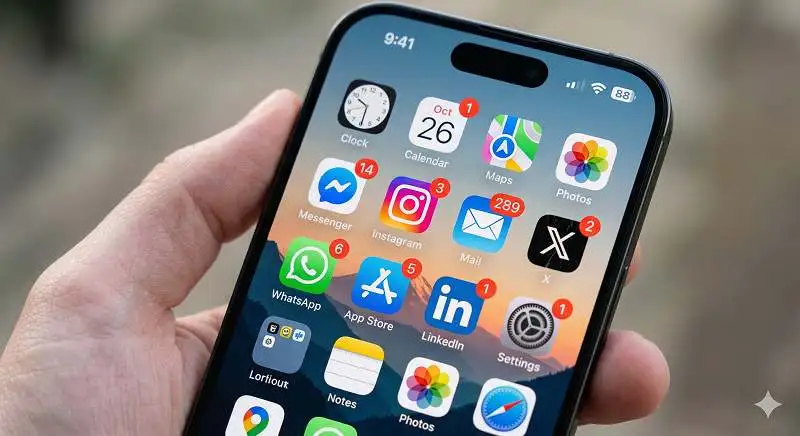
A badge notification is a small, often red dot or number that appears on an app icon on your home screen or taskbar. It’s a subtle alert that something requires attention, such as an unread message, an update, or a pending task. Unlike pop-up notifications or banners, badge notifications do not disrupt your activity. Instead, they quietly notify you of pending actions without interrupting your workflow.
These badges are tied to dynamic content inside the app and typically update in real-time. Whether it’s a missed call, a new email, or a social media alert, badge notifications provide an easy, non-intrusive way to stay informed.
Learn more about: Definition for Shape in Art
Importance of Badge Notifications
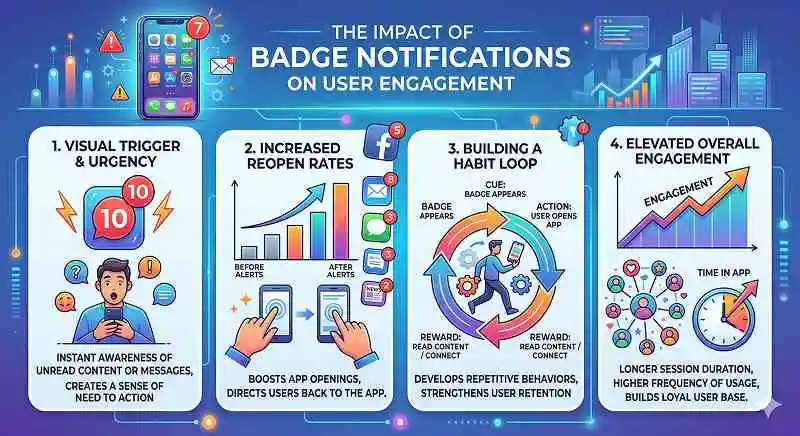
Although they may seem small, badge notifications are a powerful tool for improving user engagement. Here’s why they matter:
1. Non-Intrusive Communication
Badge notifications work quietly in the background. They alert users without sending disruptive sounds or banners, making them far less intrusive than traditional push notifications. This subtle approach helps maintain a smooth user experience, and in many cases, users appreciate these gentle nudges rather than being overwhelmed.
2. Increased App Reopen Rates
A simple badge can drive curiosity, prompting users to open an app just to “clear the red dot.” In fact, studies show that users are more likely to return to apps when they see a badge, even without an explicit call to action. As a result, badge notifications can effectively increase app reopen rates, helping to maintain consistent user engagement.
3. Reinforces Habit Loops
By consistently using badge notifications, you can help form habit loops that encourage users to check your app regularly. This, in turn, can lead to improved long-term user engagement. Over time, users begin to rely on badges to prompt them to re-enter the app and complete their tasks.
4. Highlights Personal Relevance
When users see a badge with a number increasing, it often signals something specific to them, making the interaction feel personal. This personal touch can significantly enhance the user experience, adding emotional value and encouraging users to engage with the app more frequently.
5. Boosts Retention
Apps that display badges consistently have been shown to retain users better than those that don’t. The small reminder that something awaits within the app keeps users engaged without overwhelming them. This consistent interaction fosters long-term retention, as users are reminded to return frequently.
Badge Notifications vs. Push Notifications
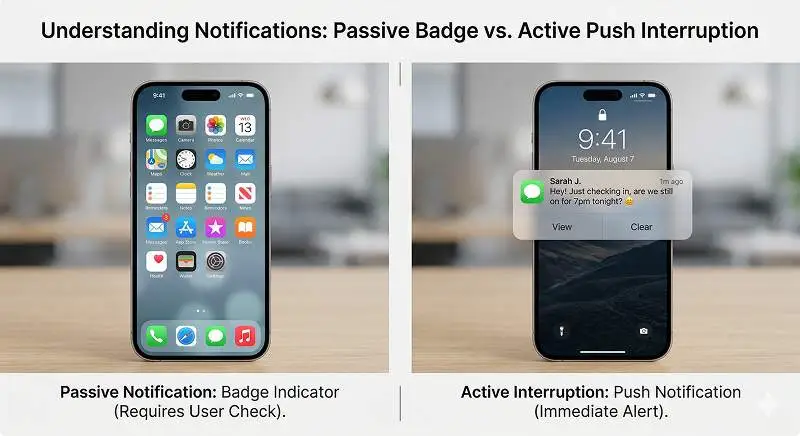
Both badge and push notifications are designed to keep users engaged, but they achieve this in very different ways. Here’s how they compare:
| Feature | Badge Notifications | Push Notifications |
|---|---|---|
| Visibility | App icon (home screen or taskbar) | Appears on screen (lock screen, banner, pop-up) |
| Intrusiveness | Low—passive, doesn’t interrupt | Highly active—interrupts user experience |
| User Interaction | Not necessary—purely visual indicator | Often requires a tap or swipe to engage |
| Content Type | Shows count or dot (e.g., unread messages) | Can carry detailed text, media, and calls to action |
| Retention Impact | Builds long-term habit-forming engagement | Drives immediate responses and conversions |
| Platform Control | Managed mostly by app settings and background activity | Controlled by both user permissions and system settings |
| Customizability | Limited—shows status/count | High—supports media, actions, and personalization |
In short, badge notifications work quietly in the background, keeping the app top of mind, while push notifications take a more direct approach to grabbing attention.
How Badge Notifications Work Across Platforms
Badge notifications may seem like simple visual cues, but their behavior varies depending on the platform. Here’s how they function on Android, iOS, and Web:
Android
On Android, badge notifications are not universally consistent. The experience can differ based on the manufacturer and the launcher being used.
- Manufacturer Dependence: Some Android devices, like those from Samsung or Xiaomi, have their own badge systems.
- Implementation Method: Developers use the NotificationManager and NotificationChannel APIs. Badges update automatically when notifications are sent via a properly configured channel.
- User Control: Users can toggle badge notifications on or off on an app-by-app basis.
- No Badge Count API: Android does not offer a universal API for managing badge counts, and some manufacturers may use proprietary methods.
iOS
Apple’s approach to badge notifications is more consistent across devices and is integrated directly into the operating system.
- System-Level Control: iOS manages badge notifications centrally. When an app updates its badge number, the system ensures it is accurately displayed.
- Implementation Method: Developers use the applicationIconBadgeNumber property in Swift or Objective-C to set badge numbers.
- Push Notification Integration: Badge counts can be updated remotely via the badge field in push notifications through the Apple Push Notification Service (APNs).
Web Apps
Web apps, particularly Progressive Web Apps (PWAs), are catching up with badge support, though this capability is still somewhat limited.
- Modern API Support: Chrome supports the Badging API, which allows websites to display badge notifications. However, this feature is currently not available on iOS Safari or Firefox.
- Implementation Method: Developers can use navigator.setAppBadge(number) to display badges or navigator.clearAppBadge() to remove them.
- Limitations: Not all browsers support this API yet, and it’s not available on Apple’s Safari browser for iOS.
Applications of Badge Notifications in Different Types of Apps
Badge notifications are versatile and can be tailored to fit the needs of various types of apps. Here’s how different categories of apps use badge notifications:
Messaging Apps
In messaging apps, badges are used to notify users of unread messages or missed calls, creating a psychological urge to open the app and respond.
- Example: WhatsApp uses badge notifications to show the number of unread chats.
Social Media Apps
Social media platforms use badges to indicate new likes, comments, followers, or activity in groups, prompting users to re-engage with the app.
- Example: Instagram shows badges for unread direct messages and notifications.
Utility Apps
Utility apps use badges to inform users about pending updates or unfinished tasks, often helping users stay on top of important actions.
- Example: Gmail displays badge counts for unread emails.
Gaming Apps
Gaming apps use badge notifications to alert players about rewards, new events, or friend challenges, encouraging consistent re-engagement.
- Example: Clash of Clans shows badges for new troop upgrades or in-game events.
Best Practices for Using Badge Notifications
While badge notifications are powerful, they need to be used wisely to avoid overwhelming users. Here are some best practices for using badges effectively:
1. Use Badges for Meaningful Alerts Only
Avoid using badges for every minor event. Reserve them for important actions like unread messages or critical updates to maintain user trust and engagement.
2. Avoid Badge Overload
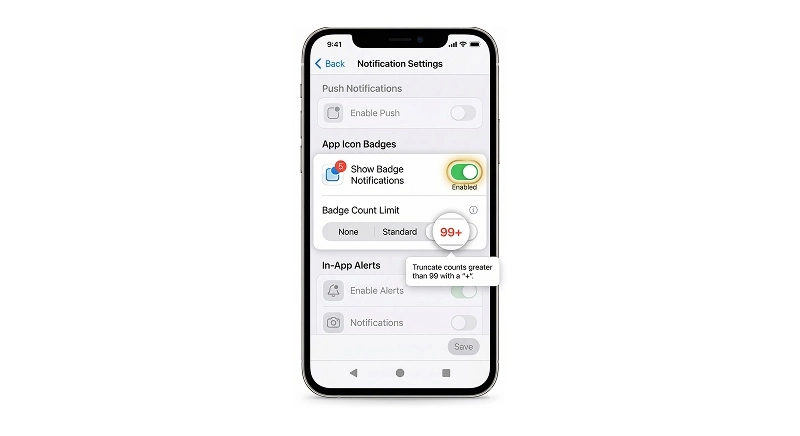
Too many badges can cause anxiety and lead users to disable them. Use sensible limits, such as “99+” for large numbers, to avoid overwhelming users.
3. Give Users Control
Allow users to customize which badges they receive and whether they want them at all. Respect for user preferences helps improve satisfaction and engagement.
4. Keep Badge Counts in Sync
Ensure that badges accurately reflect the current state of the app. Out-of-sync badges can damage trust and reduce the perceived reliability of your app.
5. Use Badges to Drive Value, Not Just Attention
Tie badge notifications to meaningful user actions, such as new opportunities or personalized offers, rather than using them simply to grab attention.
Conclusion
Badge notifications are a small yet impactful tool for improving user engagement. When used thoughtfully, they act as quiet nudges, reminding users to take action without disrupting their experience. By understanding their purpose, platform differences, and best practices, you can harness the power of badge notifications to drive long-term engagement and retention.
With the help of personalization tools like Nudge, you can further optimize badge notifications by using real-time user data, ensuring that each badge is relevant and timely. Start using badge notifications effectively to build better user habits and keep your app top-of-mind.